Generating Google Maps API Keys for Formidable Geolocation
Follow the steps below to create both the Browser API Key and the Server API Key required for integrating Google Maps with Formidable Geolocation. These keys enable essential features such as address autocomplete, map rendering, geocoding, directions, distance and duration calculation, and other location-based tools inside your Formidable Forms.
Setting Up Google Maps API Keys
1. Go to the Google Cloud Console
- Open the Google Cloud Console.
- Sign in with your Google account.
2. Create a New Project or Select an Existing One
- Click the Project Selector in the top navigation bar.

- Choose an existing project or click New Project to create a new one.
- Name your project and click Create.

3. Enable the Required Google Maps APIs
- From the sidebar, go to APIs & Services → Library.
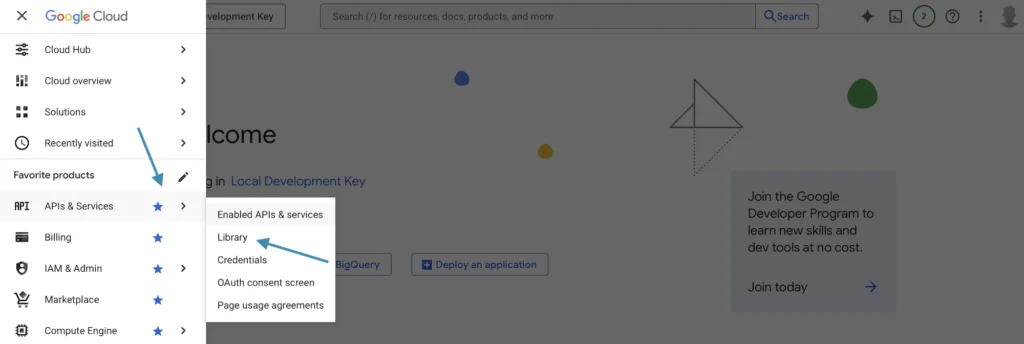
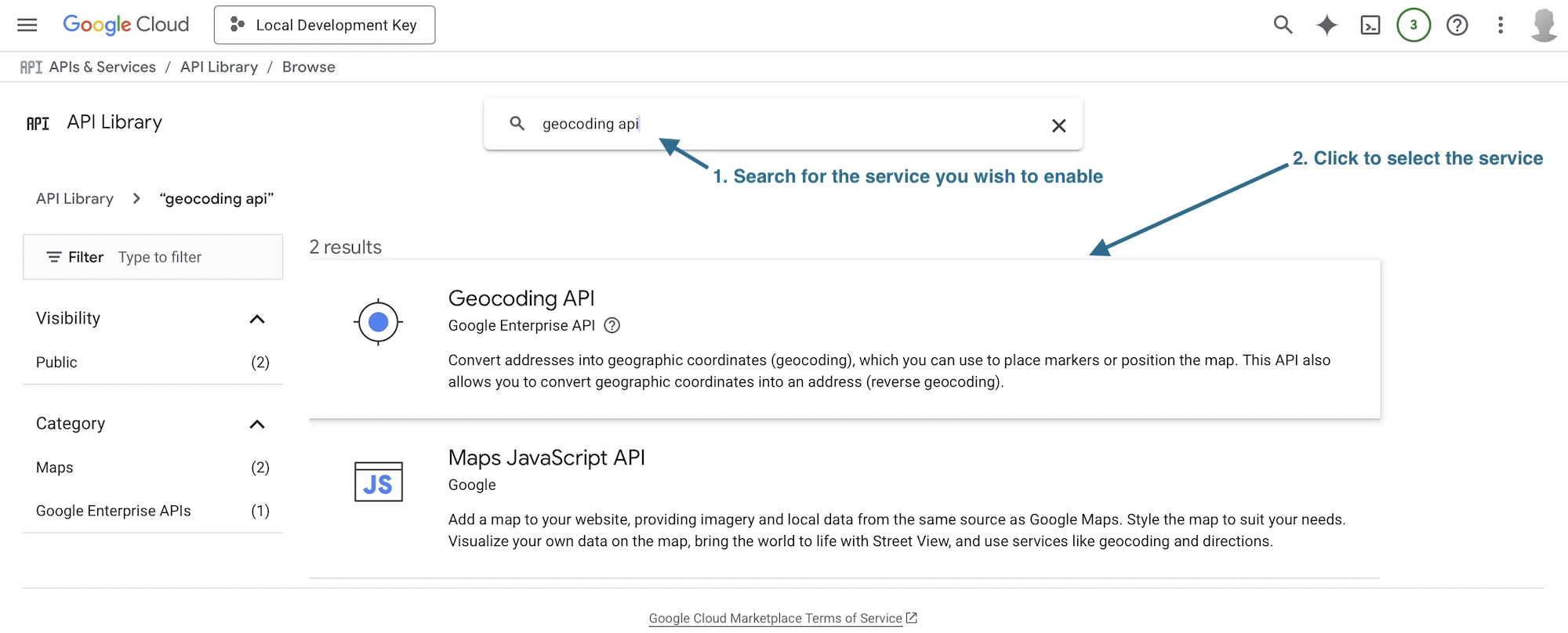
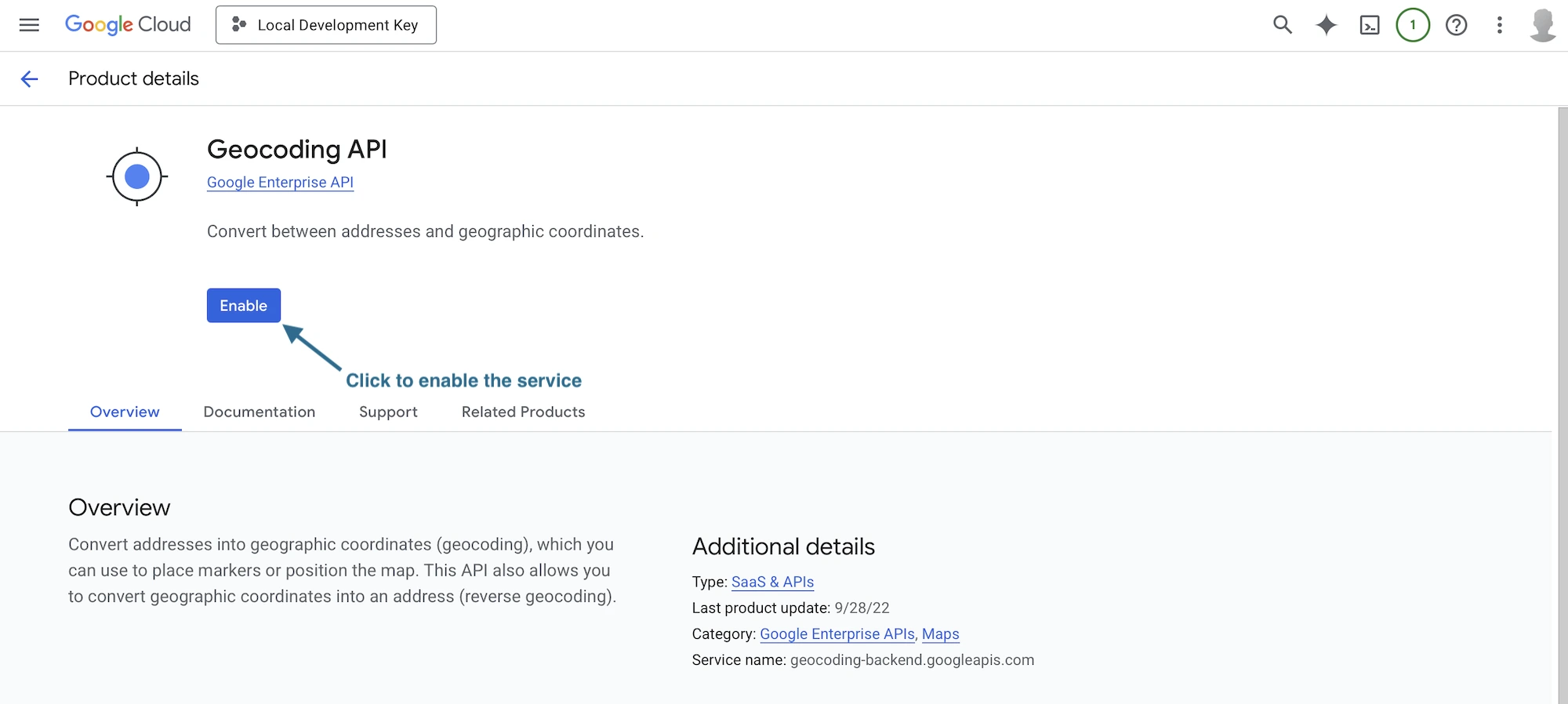
- Search for and enable the following APIs:
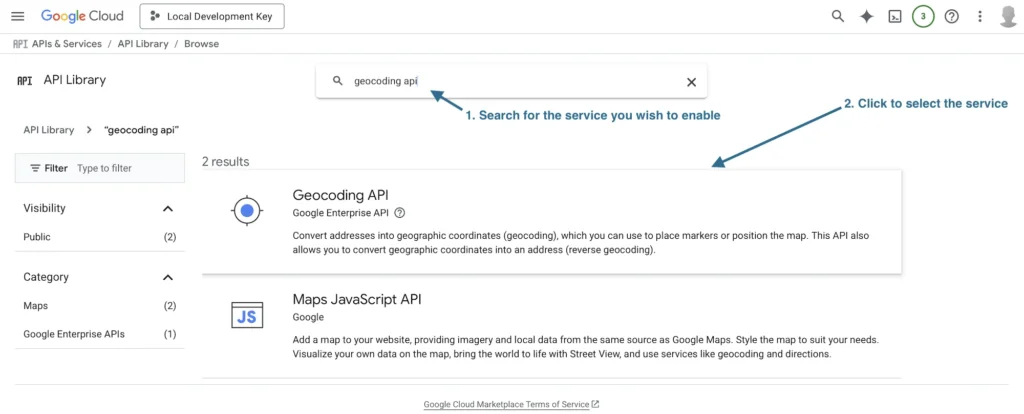
- Geocoding API
- Maps JavaScript API
- Places API (New)
- Distance Matrix API
- Routes API
- Maps Static API
- Maps Management API
- Places API (Legacy) - Enable here
- Directions API (Legacy) - Enable here
- Open each API and click Enable.
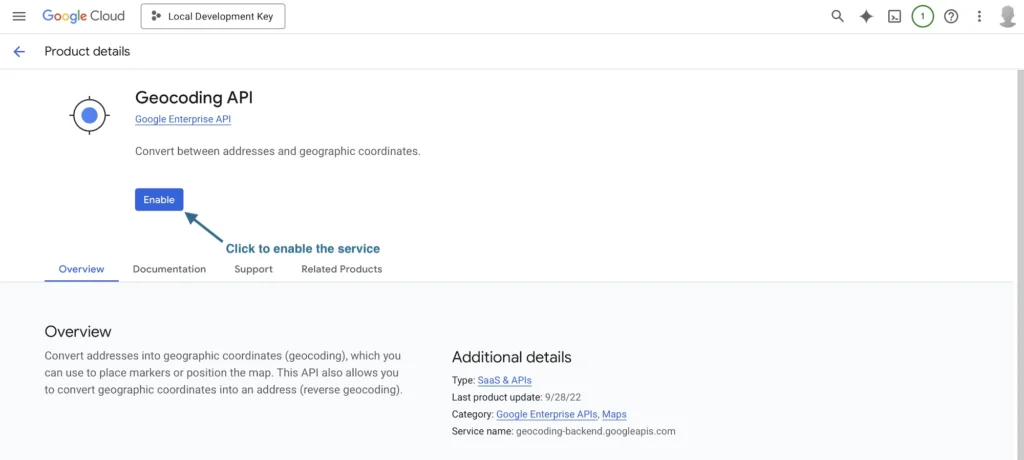

Important: The required Google Maps APIs depend on the version of Formidable Geolocation you are using.
Current stable version:
The current release of Formidable Geolocation relies on Google’s Legacy services for some features. If you are using the stable version, you must enable both the legacy and modern APIs listed above.
- Enable Places API (Legacy): Click here
- Enable Directions API (Legacy): Click here
Beta version (recommended):
If you are using the beta version of Formidable Geolocation, legacy APIs are not required. The beta version is fully optimized for modern Google APIs such as Places API (New), Routes API, and Distance Matrix API.
When the beta version becomes the official stable release, legacy API requirements will be removed from this guide.
4. Create & Restrict Your Browser API Key
- Navigate to APIs & Services → Credentials.
- Click + Create Credentials → API Key.
- Google will generate a new key, copy it for later use.
- Click Restrict Key and apply the following:
- Application Restrictions: Choose Websites.
- Add your website URL, for example:
https://example.com/*https://staging.example.com/*
- API Restrictions: Enable:
- Geocoding API
- Maps JavaScript API
- Places API (New)
- Distance Matrix API
- Routes API
- Maps Management API
- Places API (Legacy) (stable version only)
- Directions API (Legacy) (stable version only)
Enable all APIs that are used by Formidable Geolocation on the front end. If an API is missing here and the plugin attempts to call it via JavaScript, Google will block the request even if the API is enabled at the project level.
Note: If you are using the current stable version of Formidable Geolocation, also include Places API (Legacy) in the API restrictions.

- Save your changes.

5. Create & Secure Your Server API Key
- While still on the Credentials page, click + Create Credentials → API Key.
- Your Server API Key will be generated, save it.
- Click Restrict Key and configure:
- Application Restrictions: Choose IP addresses.
- Add your server’s IP address (your hosting provider can provide this).
- API Restrictions: Enable:
- Geocoding API
- Distance Matrix API
- Directions API (Legacy) (stable version only)
- Routes API
- Maps Static API
Some distance and routing requests may be executed via JavaScript depending on your configuration and field usage, which is why these APIs must be allowed on the Browser API Key as well.

- Save your changes.

Final Note
Correctly setting up your Google Maps API keys ensures Formidable Geolocation can provide accurate address autocomplete, mapping, geocoding, and distance/direction features.
If you encounter issues, verify:
- All required APIs are enabled based on your plugin version (Legacy and/or New).
- Browser and Server keys are entered in the Formidable Geolocation settings.
- Your domain or server IP is correctly added under key restrictions.
- If you are using Distance or Duration fields, ensure the Distance Matrix API is enabled for your API key.
For additional guidance, refer to the Google Maps API Documentation or the Formidable Geolocation help center.