Creating a Geolocation-Enabled Form in Formidable Forms
Introduction
This guide walks you through creating a geolocation-powered form in Formidable Forms using Formidable Geolocation. You will learn how to add and configure essential geolocation fields, including the Geocoder Field, Address Field, Locator Button, Map Field, Coordinates Field, and Reset Location Button.
After installing and activating the plugin, you can begin building forms that support real-time address autocomplete, map interaction, geocoding, user location detection, and more.
In this guide, we use a Geocoder Field with ID 1 as the example. When creating your own form, be sure to use the field ID that matches your setup.
Building a Geolocation Form in Formidable Forms
The Geocoder Field acts as the central engine that synchronizes location data between all other geolocation fields. Each additional field, such as theAddress, Map, Coordinates, Locator Button, and Reset Location, connects to the Geocoder Field to ensure accurate and consistent geolocation behavior throughout your form.
1. Add and Configure the Geocoder Field
The Geocoder Field stores and manages location data. All other geolocation fields use it as their reference point.

- Add the Geocoder Field: Drag the Geocoder Field into your form from the “Geolocation” field group.
- Note the field ID: For this guide, we reference Geocoder Field ID 1.
- Configure geocoder settings: Set default coordinates, marker behavior, and any additional options needed for your form. See the Geocoder Field documentation.
2. Add and Configure the Address Field
The Address Field allows users to enter or autocomplete an address. When linked to a Geocoder Field, selecting an address automatically updates all related geolocation fields.

- Add the Address Field: Drag the Address Field into your form.
- Link to Geocoder Field: Choose Geocoder Field ID 1 in the Address Field settings.
- Enable enhancements: Turn on autocomplete and formatting settings as needed. Learn more in the Address Field documentation.
3. Add and Configure the Locator Button
The Locator Button lets users detect their current location using browser or device geolocation.
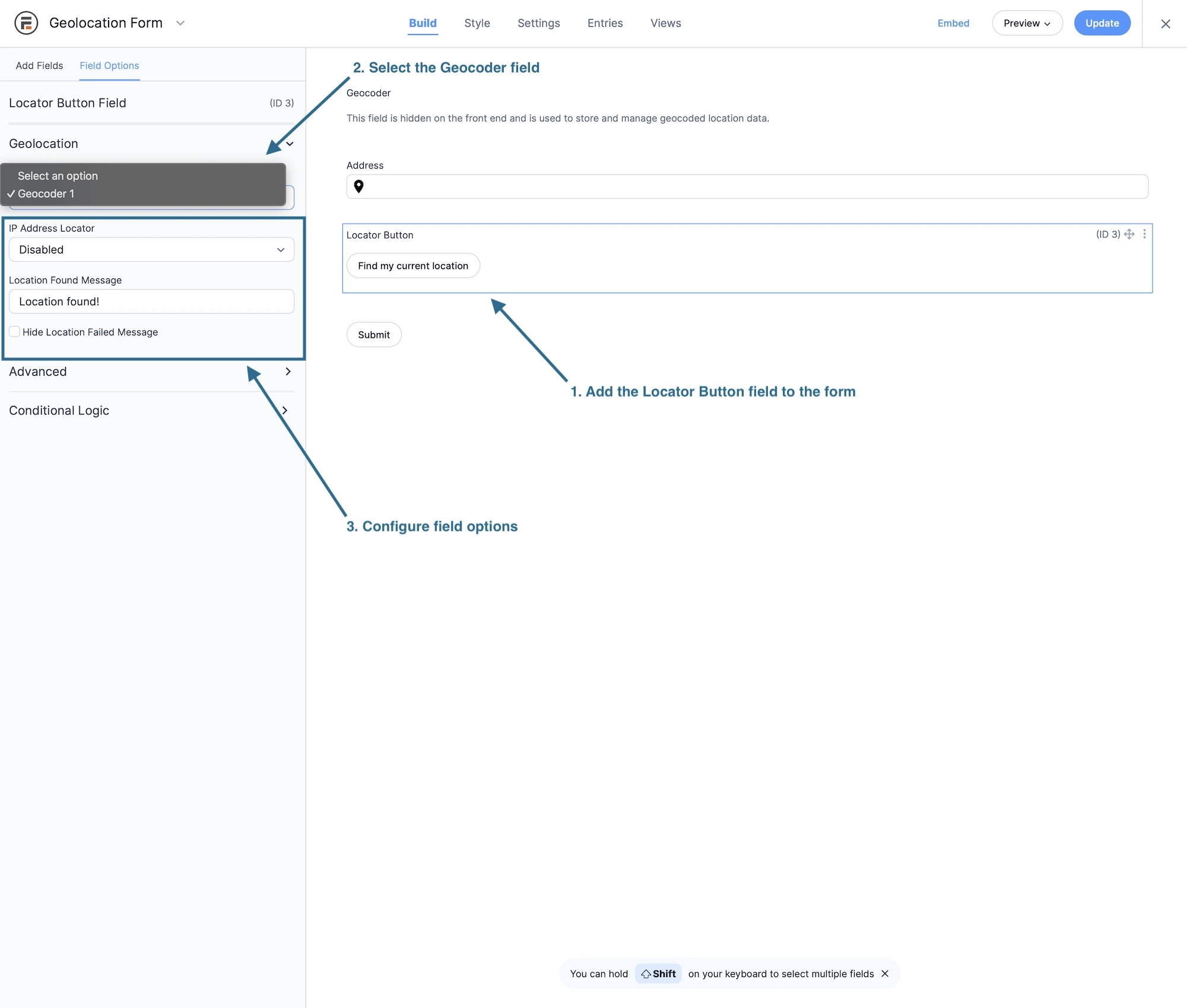
- Add the Locator Button: Drag it into your form wherever you want users to trigger location detection.
- Connect it to Geocoder Field ID 1: Select the matching ID in the field settings.
- Adjust locator options: Configure fallback behavior, button style, and permissions. Documentation available here.
4. Add and Configure the Map Field
The Map Field displays location data visually and allows interactive map-based selection.
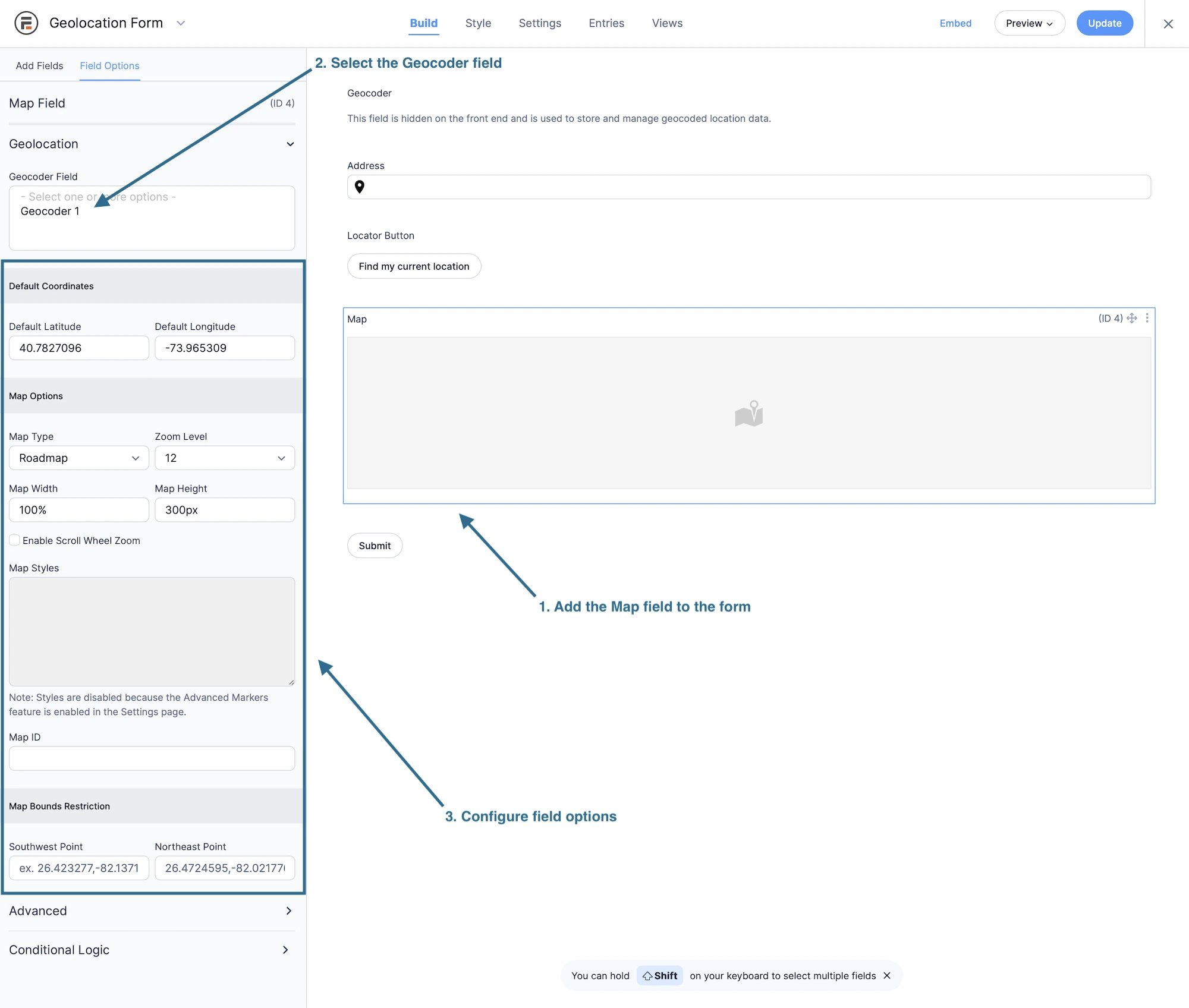
- Add the Map Field: Drag the Map Field into the form.
- Select Geocoder Field ID 1: Link the map so it responds to geocoder updates.
- Configure map settings: Choose map type, zoom, marker behavior, and other options. Full documentation here.
5. Add and Configure the Coordinates Field
The Coordinates Field lets users manually input or adjust latitude and longitude values.
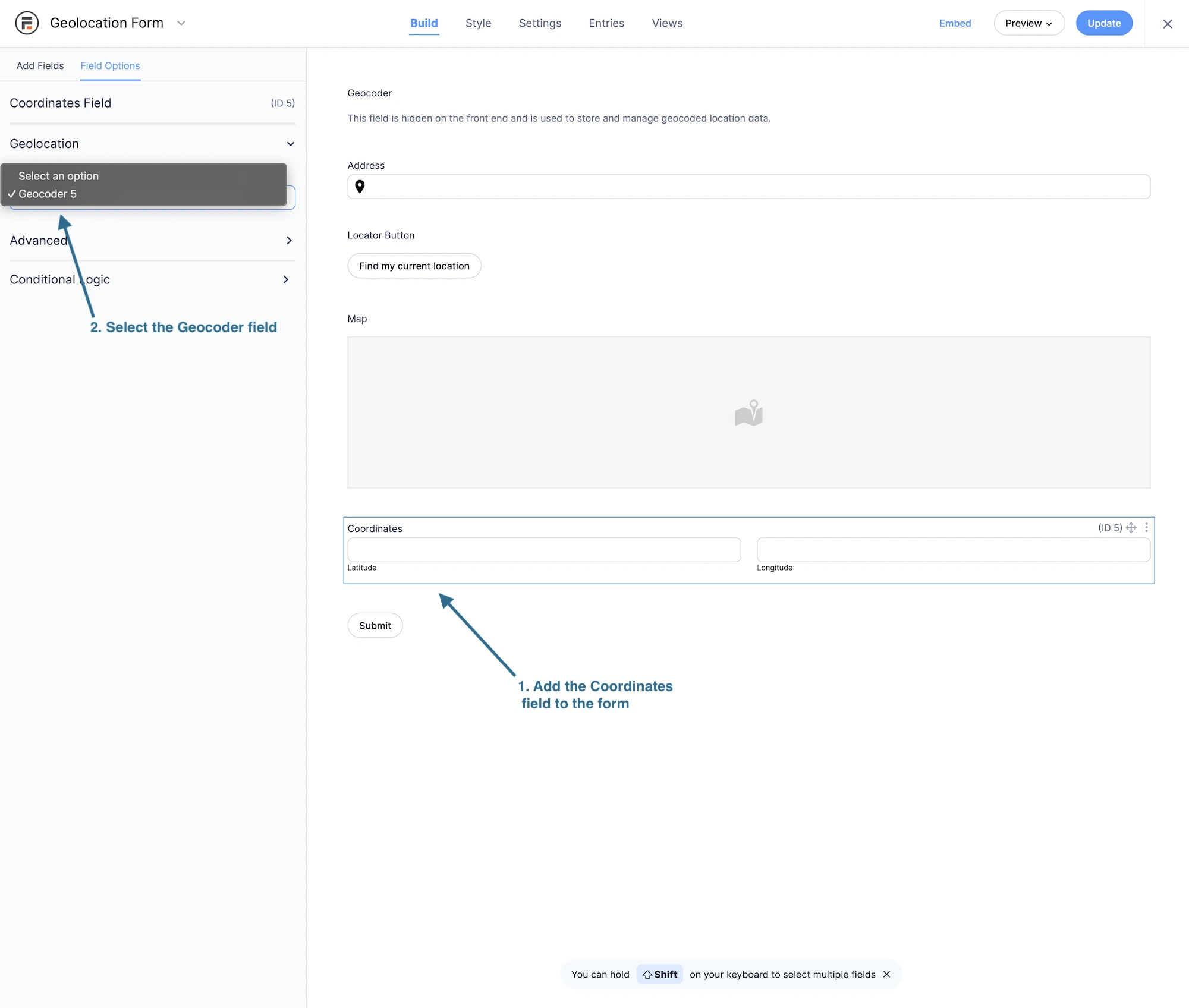
- Add the Coordinates Field: Drag it into your form.
- Link it to the Geocoder Field: Select Geocoder Field ID 1.
- Configure field behavior: Set placeholders or default values. See the Coordinates Field documentation.
6. Add and Configure the Reset Location Button
The Reset Location Button clears all synced values and returns the form to its default state.

- Add the Reset Location Button: Insert it anywhere in your form layout.
- Link it to Geocoder Field ID 1: Select the correct geocoder reference.
- Adjust reset behavior: Customize button text and advanced reset settings. Documentation available here.
Final Steps
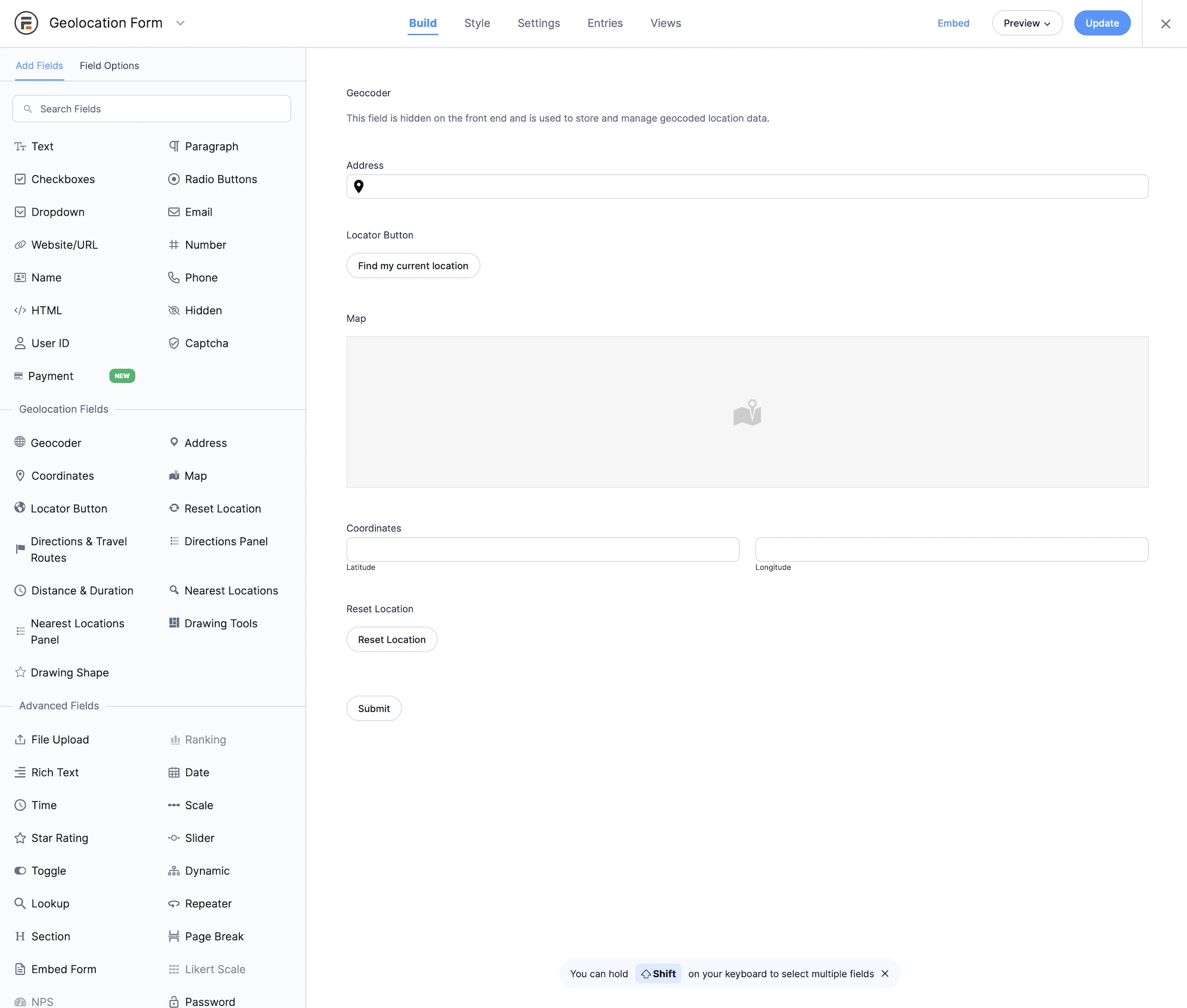
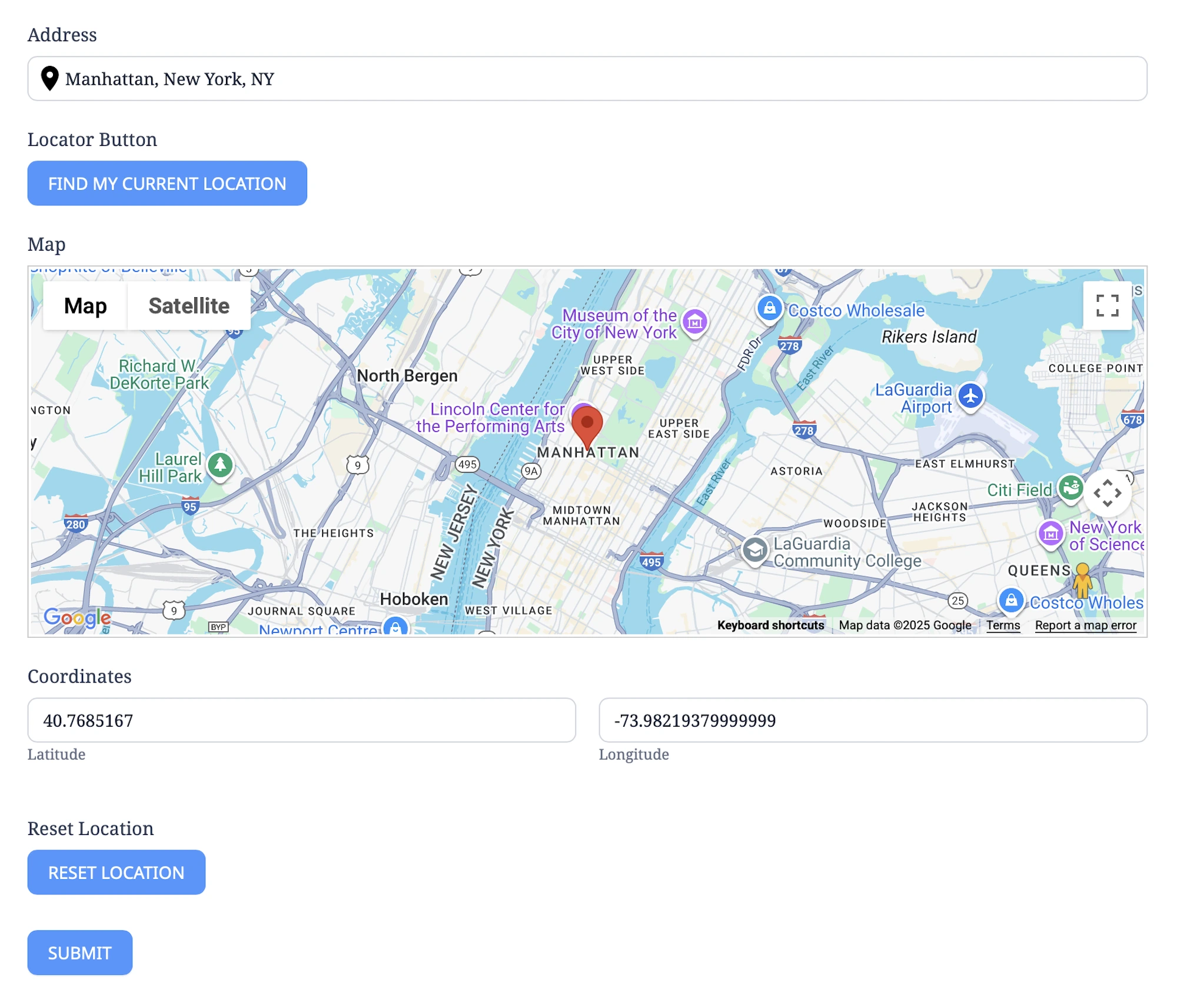
Your geolocation-enabled Formidable form is now ready for testing. Before publishing, review these final steps:
- Preview the form: Open it on different devices and browsers to confirm consistent behavior.
- Verify field syncing: Ensure all fields correctly update based on Geocoder Field ID 1.
- Test the Reset Button: Confirm that all synced fields clear properly.
Continue experimenting with different combinations of fields and settings to create the ideal geolocation workflow for your project. For additional help, visit our documentation or contact support.