The Geocoder Field is the core processing engine behind all geolocation functionality in Formidable Geolocation. It performs geocoding, reverse-geocoding, and distributes location updates to all connected geolocation fields, including Address, Coordinates, Map, Locator Button, Directions, and Drawing Tools.
Although hidden on the front-end, every geolocation workflow depends on at least one Geocoder Field. Learn more about field syncing here: Synchronizing Geolocation Fields.
Configuring the Geocoder Field
Use the options below to define the default location behavior, map marker interaction, and how the geocoder communicates with other synced fields.
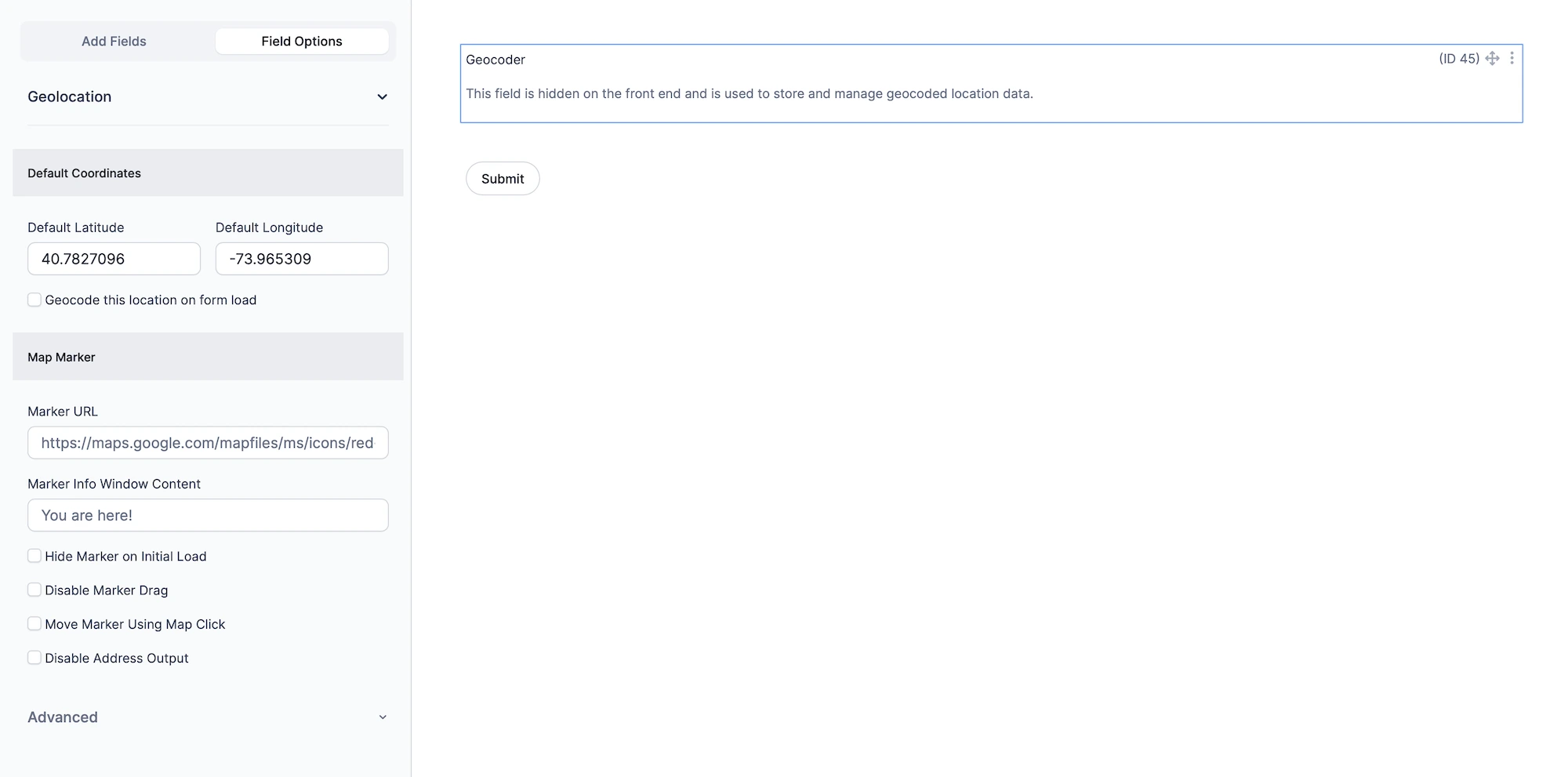
Geocoder Field settings in Formidable Geolocation.
1. Default Coordinates
These settings define the initial latitude/longitude values used when the form loads. They determine the starting point for the map marker (if present) and can optionally trigger automatic geocoding.
Default Latitude
Enter the latitude of the default location. (Example: 40.7827096)
Default Longitude
Enter the longitude of the default location. (Example: -73.965309)
Geocode this location on form load
Automatically geocode the default coordinates when the form first loads. This populates all connected geolocation fields with the processed address and coordinates. (Optional: leave unchecked to show the marker only, without geocoding.)
2. Map Marker Options
Customize how the geocoder’s map marker appears and behaves when connected to a Map Field.
Marker URL
Provide the URL of a custom image to use as the marker icon. (Example: https://maps.google.com/mapfiles/ms/icons/red-dot.png)
Marker Info Window Content
Enter the text or HTML that appears inside the marker’s info window when clicked. Leave blank to disable the info window.
Hide Marker on Initial Load
Hide the marker when the form first loads. It will appear only after geocoding, locator detection, or a user-triggered update.
Disable Marker Drag
Prevent users from dragging the marker on the map. The marker will still update automatically when geocoding or address input changes.
Move Marker Using Map Click
Allow users to reposition the marker by clicking anywhere on the map.
Disable Address Output
Prevent Address Fields from being updated when the marker moves. Only Coordinates Fields will receive updates. (Useful when the address input is already correct and the user only needs to fine-tune coordinates.)
Setting Up and Using the Geocoder Field
Follow these steps to set up the Geocoder Field correctly:
Add the Geocoder Field: Drag it into your form. It will not be visible on the front-end.
Set Default Coordinates: Provide a starting lat/lng and choose whether to geocode on page load.
Link Other Fields: Select this Geocoder Field inside the settings of Address, Coordinates, Map, Locator Button, Directions, and other geolocation fields.
Adjust Marker Settings: Customize marker behavior, dragging, clicking, and info window options.
Test Your Form: Preview your form and confirm syncing, marker movement, and location output behave as expected.
Interactive Front-End Preview
Discover the plugin in action on our interactive front-end demo site.