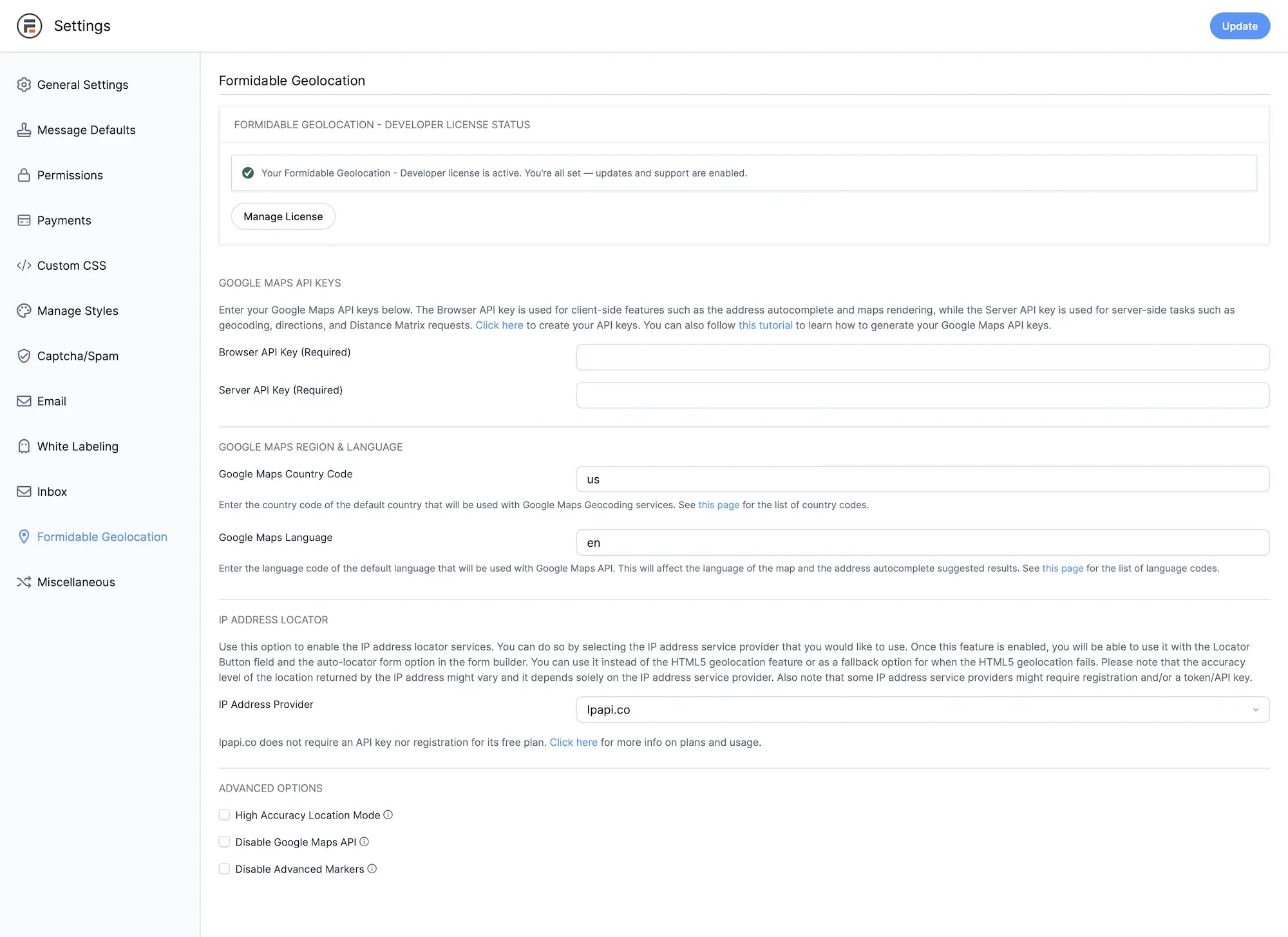
The Formidable Geolocation settings page provides all essential configuration options used by your forms, including Google Maps API keys, region and language preferences, locator accuracy settings, and IP-based fallback features.
These settings apply globally across all geolocation-enabled Formidable Forms and ensure consistent behavior for maps, autocomplete, geocoding, and location detection.
Formidable Geolocation settings page.
Formidable Geolocation Settings Options
1. License Status
This section displays the activation status of your Formidable Geolocation license. An active license enables plugin updates and premium support. Use the Manage License button to activate, deactivate, or update your license key.
2. Google Maps API Keys
Formidable Geolocation requires two Google Maps API keys for full functionality. Both keys work together to support maps, autocomplete, geocoding, routing, and other location features.
Browser API Key (Required)
This key is used for all client-side features such as interactive maps, address autocomplete, place suggestions, and user-initiated directions requests. It must be configured as a Browser (HTTP-restricted) key.
Server API Key (Required)
The Server API Key is required for all backend location processing, including:
Pre-defined and server-side geocoding
Google Routes API (driving, distance, and travel time)
Distance Matrix calculations
Fallback geocoding for Directions, Map, and Geocoder fields
Any geolocation operations that must run securely on your server
This key must be secured as an IP-restricted server key in Google Cloud. Enable all required APIs for full plugin functionality.
3. Google Maps Region & Language
Google Maps Country Code
Sets the default region bias for geocoding and autocomplete. Use a two-letter ISO country code (e.g., US, CA, AU). This improves the accuracy and relevance of suggested results.
Google Maps Language
Determines the language used by Maps, autocomplete suggestions, and geocoding responses. Use a standard language code such as en, es, fr, etc.
4. IP Address Locator
Choose how Formidable Geolocation should detect a user’s location when using the Locator Button or any auto-locator features. IP-based detection can be used as a primary lookup method or as a backup when HTML5 geolocation is unavailable or denied by the browser.
IP Address Provider
Select the lookup provider Formidable Geolocation should use for IP-based location detection:
Ipapi.co: No token required for the free tier. Simple and reliable for basic IP-based lookups.
Ipinfo.io: Requires a token. Offers improved accuracy, ISP details, and additional metadata.
Ipregistry: Requires an API key. Provides high-quality global IP intelligence with fast lookup performance.
Provider Usage Mode
Disabled: IP-based geolocation is turned off. Only HTML5 geolocation will be used.
Default: Use the selected IP provider as the primary lookup method whenever a location is requested.
Fallback: Use the IP provider only when HTML5 geolocation fails, times out, or is blocked by the user.
Depending on the provider and plan, an API key or token may be required. IP-based geolocation accuracy varies by region, network, and service provider.
5. Advanced Options
High Accuracy Location Mode
Enables the browser’s high-accuracy GPS mode when fetching the user's location. This may increase accuracy but can take longer to process depending on the device.
Disable Google Maps API
Use this option if your theme or another plugin already loads Google Maps. Enabling this prevents duplicate API loading and avoids JavaScript conflicts.
Disable Advanced Markers
Turns off Google’s Advanced Marker features. This is useful for troubleshooting display issues or when using custom marker rendering.
How to Use These Options
To configure Formidable Geolocation effectively:
Activate your license for updates and support.
Enter your Browser API key - required for all mapping features.
Set your region and language for more accurate geocoding.
Choose an IP locator mode depending on your accuracy and fallback needs.
Enable high-accuracy mode for improved HTML5 GPS precision.
Use Advanced Options only if needed for compatibility or debugging.