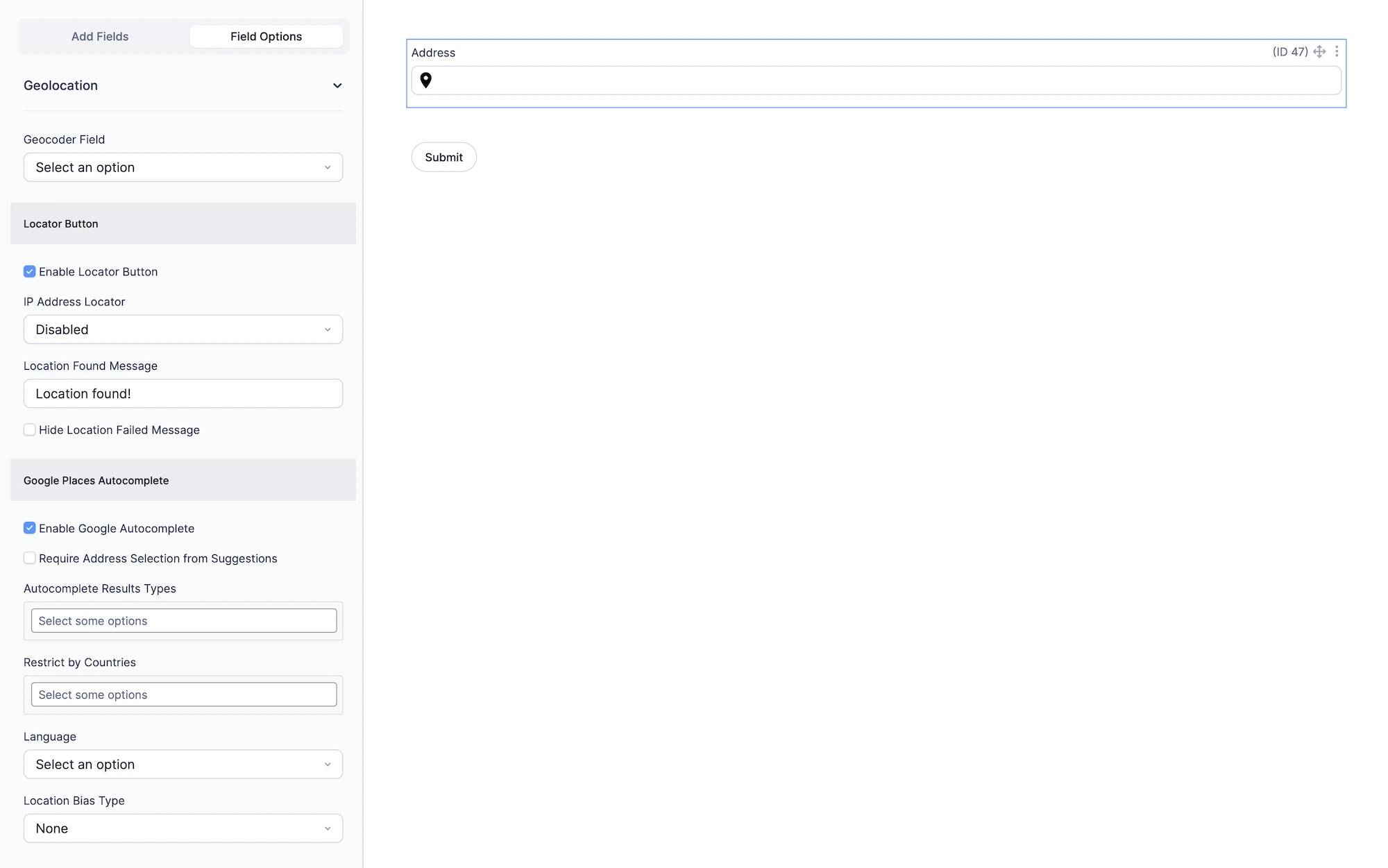
The Address Field in Formidable Geolocation adds powerful geolocation capabilities to standard address inputs. It supports Google Places Autocomplete, an optional Locator Button, proximity or region-based search restrictions, language selection, and full synchronization with the Geocoder Field and other geolocation fields.
These enhanced geolocation controls allow users to enter precise, validated addresses while giving you full control over how suggestions are displayed and how location data is processed.
Configuring the Address Field
The following sections describe every geolocation-specific option available for the Address Field.
Address Field settings in Formidable Geolocation.
1. Geocoder Field
Select the Geocoder Field that this Address Field should synchronize with. This enables automatic geocoding, map marker movement, coordinate updates, and two-way field syncing.
Required: a Geocoder Field must be added to your form for syncing to work.
2. Locator Button
Enable a built-in locator icon inside the Address Field. When clicked, it retrieves the user’s current location using HTML5 browser geolocation or an optional IP-based provider.
Enable Locator Button
Display a locator icon that, when clicked, attempts to detect and populate the user’s current location.
IP Address Locator
Choose how the user’s IP address should be used to detect their approximate location. This acts as an alternative or fallback when HTML5 browser geolocation is unavailable or denied.
Disabled: Do not use IP-based location detection.
Default: Use IP-based detection as the primary locator instead of HTML5 geolocation.
Fallback: Attempt HTML5 geolocation first; if it fails, use IP-based detection.
Note: IP-based location is approximate and may vary based on the visitor’s ISP.
Location Found Message
Enter the message displayed when the user’s location is successfully retrieved. (Example: Location found!)
Hide Location Failed Message
Check this option to hide the error message when location retrieval fails (e.g., permission denied, timeout, or no IP match).
3. Google Places Autocomplete
Enable and configure Google Places Autocomplete to show real-time address suggestions as the user types.
Enable Google Autocomplete
Turn on real-time address suggestions powered by the Google Maps Places API.
Require Address Selection from Suggestions
Forces users to choose a suggestion from the dropdown instead of entering an address manually.
Message for Manual Entry Attempt
Message displayed if a user tries to submit an unverified, manually typed address. (Example: Please select an address from the suggested results.)
Autocomplete Results Types
Choose which types of places autocomplete should return. (Examples: address, establishment, geocode)
See the Google documentation for supported types.
Restrict by Countries
Select one or more countries (up to 5) to limit autocomplete results to those regions.
Language
Choose the language that autocomplete suggestions and returned place details should use. Leave blank to use the browser’s default language.
Location Bias Type
Select how autocomplete results should be biased or restricted:
None: No biasing or restrictions applied.
Proximity: Bias suggestions toward the specified lat/lng + radius.
Area Bounds: Limit suggestions to a defined rectangular region.
IP Location: Bias results toward the visitor’s approximate IP-based location.
4. Autocomplete Bounds & Restrictions
Configure precise proximity or regional restrictions used when the Location Bias Type is set to Proximity or Area Bounds.
Proximity (Latitude, Longitude, Radius)
These values apply when using Proximity biasing:
Latitude: Latitude of the center point.
Longitude: Longitude of the center point.
Radius (meters): Search radius around the center point.
Area Bounds (Southwest & Northeast Points)
Used when Area Bounds is selected:
Southwest Point: Coordinates in the format lat,lng.
Northeast Point: Coordinates in the format lat,lng.
Setting Up and Using the Address Field
Follow these steps to use the Address Field effectively:
Add the Address Field: Insert it into your Formidable form.
Connect a Geocoder Field: Select the Geocoder Field for syncing and geocoding.
Enable Autocomplete and/or Locator: Configure Google Autocomplete, restrictions, and locator options as needed.
Preview the Form: Test address input, autocomplete suggestions, geocoder syncing, and locator button behavior.
Interactive Front-End Preview
Discover the plugin in action on our interactive front-end demo site.