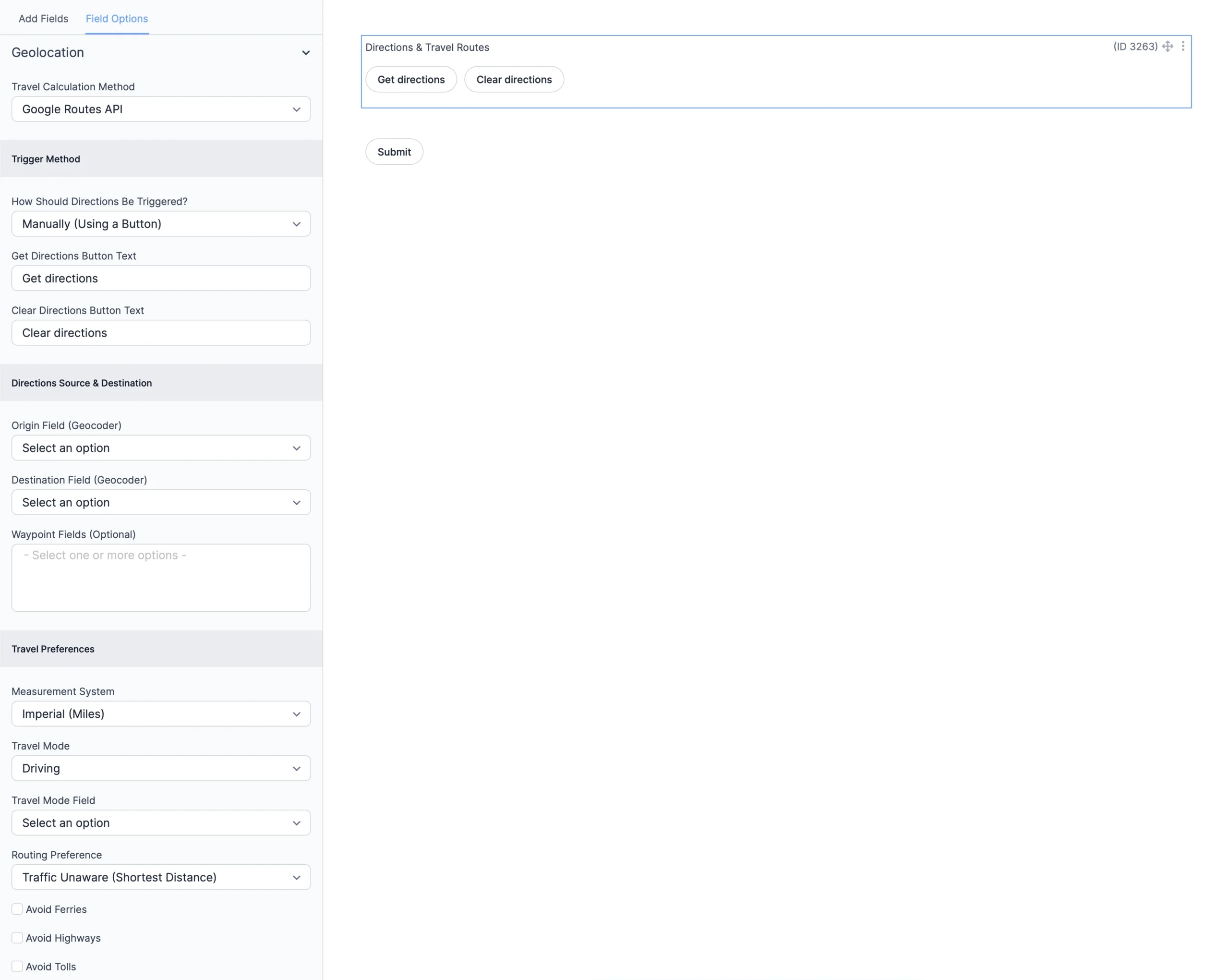
The Directions Field in Formidable Forms Geolocation calculates routes, distances, traffic-aware travel times, and step-by-step instructions between two or more locations. It supports the Google Maps Routes API for precise driving calculations and can display results on a connected Map Field or inside a Directions Panel Field. This field is ideal for delivery workflows, travel planning, cost estimations, logistics routing, and other location-based applications.
Note: This documentation covers the geolocation options added by the Formidable Geolocation plugin. All standard Formidable Forms field settings (labels, conditional logic, visibility controls, etc.) can also be configured as usual.
Configuring the Formidable Forms Directions Field
The following sections outline the configuration settings available for the Directions Field.
Address Field settings in Formidable Geolocation.
1. Travel Calculation Method
Select how the distance and travel time should be calculated.
Travel Calculation Method
Choose the routing engine:
Google Routes API: Provides precise routing, traffic-aware durations, waypoints, restrictions, and turn-by-turn guidance (Default).
Straight-Line (Haversine): Calculates the linear distance between two points without roads or traffic considerations.
2. Trigger Method
Control how directions are generated either automatically or via a button.
How Should Directions Be Triggered?
Select the trigger behavior:
Manually (Using a Button): The user must click a button to calculate routes.
Automatically: Directions update instantly when a geolocation field changes.
Get Directions Button Text
Customize the label displayed on the button that triggers route calculation (Default: Get directions).
Clear Directions Button Text
Customize the label for the button that clears displayed routes (Default: Clear directions).
3. Directions Source & Destination
Assign the Geocoder Fields used to define the origin, destination, and optional waypoints.
Origin Field (Geocoder)
Select the Geocoder Field that provides the starting point for the route.
Destination Field (Geocoder)
Select the Geocoder Field that represents the destination.
Waypoint Fields (Optional)
Select one or more Geocoder Fields to serve as intermediate stops. Waypoints are optional and can be reordered by the user depending on your form setup.
4. Travel Preferences
Customize routing behavior, units, and travel mode.
Measurement System
Choose how distances should appear:
Imperial (Miles): Uses miles and feet (Default).
Metric (Kilometers): Uses kilometers and meters.
Travel Mode
Select the preferred travel method:
Driving(Default)
Walking
Bicycling
Transit
Travel Mode Field
Select a Dropdown or Radio field that allows users to choose DRIVING, WALKING, BICYCLING, or TRANSIT dynamically.
Routing Preference
Choose how the Google Routes API selects the path:
Traffic Unaware (Shortest Distance)(Default)
Traffic Aware (Fastest Route)
Traffic Aware Optimal
Avoid Ferries
Enable to avoid ferry routes.
Avoid Highways
Enable to avoid highway travel.
Avoid Tolls
Enable to avoid toll roads.
5. Travel Date & Time Settings
Configure date/time-aware routing using the Google Routes API.
Travel Time Mode
Select when the estimated route should be calculated:
Leave Now(Default)
Leave At
Arrive By
Travel Time Mode Field
Select a frontend field that allows the user to choose Leave Now / Leave At / Arrive By.
Default Travel Date
Set a default date used when Leave At or Arrive By is selected.
Travel Date Field
Select the frontend date field that users will interact with.
Default Travel Time
Set a default time used when Leave At or Arrive By is selected.
Travel Time Field
Select the frontend time field used for selecting the departure or arrival time.
6. Display Options
Choose where and how the directions and route should appear.
Map Field for Displaying Route
Select the Map Field where the route polyline will be rendered.
Polyline Appearance
Customize the route line styling using JSON-compatible syntax such as color, opacity, and stroke weight (Example: strokeColor:'#0088FF',strokeWeight:6,strokeOpacity:0.6).
Directions Panel Output
Select the Directions Panel Field where detailed turn-by-turn instructions will appear.
How to Use the Formidable Geolocation Directions Field
Follow these steps to set up the Directions Field:
Add the Directions Field: Insert it via the Formidable Forms builder.
Configure all routing, travel, and display options: Use the settings described above.
Link Geocoder Fields: Assign origin, destination, and optional waypoint fields.
Connect a Map Field and/or Directions Panel Field: Enables visual results.
Test your form: Verify routing behavior across devices and browsers.
Interactive Front-End Preview
Discover the plugin in action on our interactive front-end demo site.